# Global Email Setup
This guide is for all Temples and Saber Guild council positions that are granted @saberguild.org email addresses.
To quickly access your global email directly without needing a Gmail account or other email client you can use the webmail portal here:
[https://webmail.saberguild.club](https://webmail.saberguild.club "Saber Guild Webmail")
If you are already using Gmail with a temple name or your own personal account and want to use the @saberguild.org with it there are some simple instructions you can follow to allow you to do the following.
- Receive email sent to your @saberguild.org address
- Send email as your @saberguild.org address
- Reply to emails as your @saberguild.org address
# How to setup email sending in Gmail
#### Step 1 - Click on the Settings Cog
In the upper right of your Gmail account there is a big Cog icon, click it.
[](https://holocron.saberguild.org/uploads/images/gallery/2024-05/email-1.jpg)
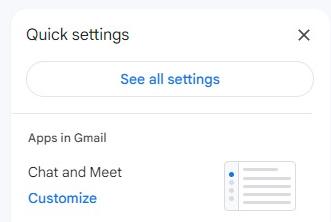
#### Step 2 - Click on See all Settings
[](https://holocron.saberguild.org/uploads/images/gallery/2024-05/email-2.jpg)
#### Step 3 - Click on Accounts and Import
[](https://holocron.saberguild.org/uploads/images/gallery/2024-05/email-2b.jpg)
#### Step 4 - Click Add another email address
You will find "Add another email address" in the "Send mail as" section.
[](https://holocron.saberguild.org/uploads/images/gallery/2024-05/email-3.jpg)
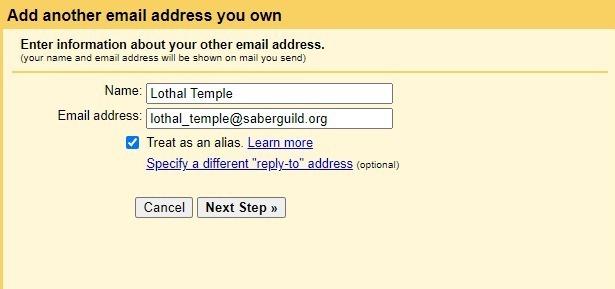
#### Step 5 - Fill the fields in the popup window
**Name :** set to what you want the name to be, this should be "<temple name> Temple" for temples or your saber guild council position.
**Email address** : Set this to your official Saber Guild email address
**Treat as an alias** : Leave this checked unless you know what you are doing
Click **Next**
[](https://holocron.saberguild.org/uploads/images/gallery/2024-05/email-4.jpg)
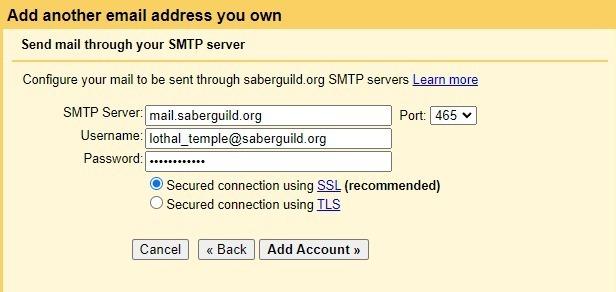
#### Step 6 - Set the values for the Saber Guild mail server
**SMTP Server** : Should have automatically been set, make sure it is **mail.saberguild.org**
**Port** : Set to **465**
**Username** : The full email address for your @saberguild.org email account
**Password** : Will have been sent to you separately.
**Secured connection using SSL** : Selected
**Click on "Add Account"**
[](https://holocron.saberguild.org/uploads/images/gallery/2024-05/email-5.jpg)
#### Step 7 - Verify you own the account
For this step, you will need to log into your Saber Guild email account directly.
Go to [https://saberguild.org:2096](https://saberguild.org:2096)
Use your full email address and the password to log in.
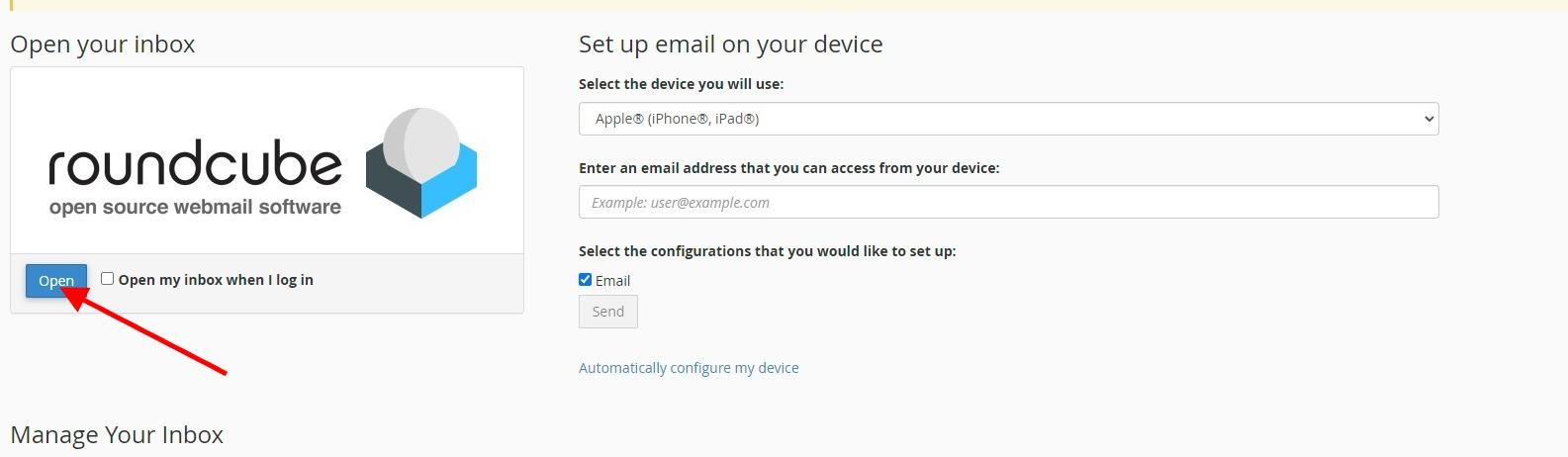
##### Step 8 - Go to your Inbox
When you log in you will be given a somewhat confusing page, just click on the "open" button on the left side to go to your inbox.
[](https://holocron.saberguild.org/uploads/images/gallery/2024-05/email-7.jpg)
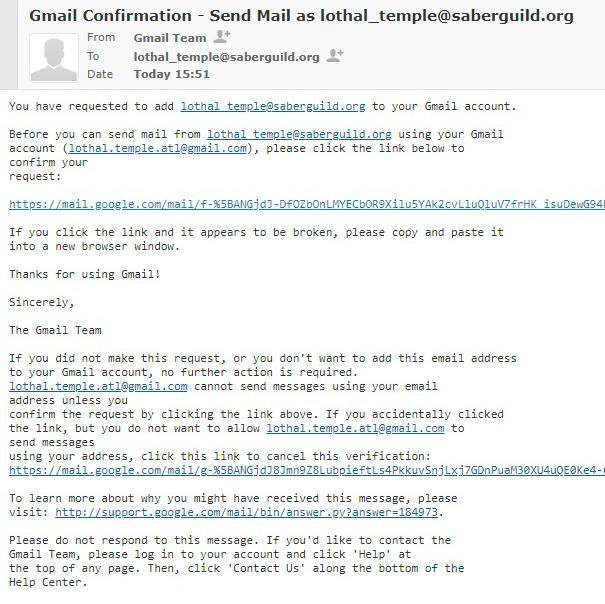
#### Step 9 - Find and use the verification email
The email should have the subject like 'Gmail Confirmation - Send Mail as lothal\_temple@saberguild.org'
Open this email and click on the Confirm your request link.
[](https://holocron.saberguild.org/uploads/images/gallery/2024-05/email-8.jpg)
#### Step 10 - Click the Confirm in the new page the opened
You will be presented with a Gmail Confirmation page with a button that says "Confirm", click this and you are done!
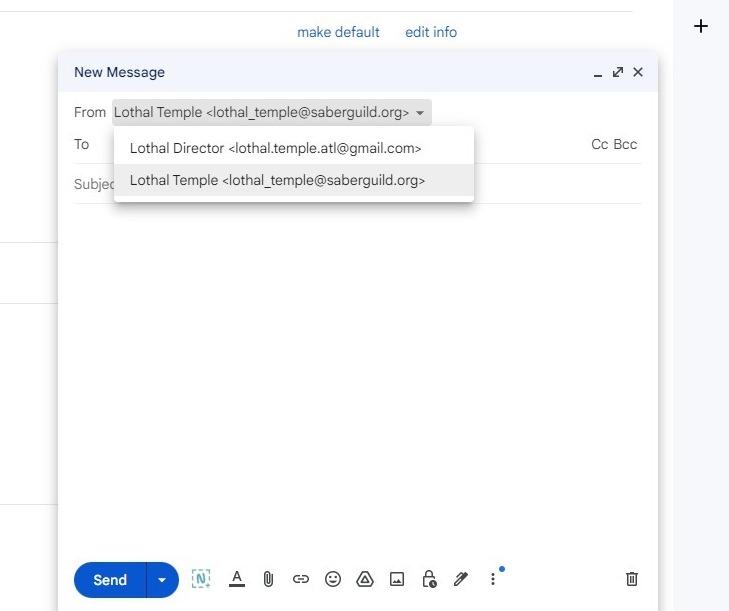
#### Step 11 - Try it out - Send a mail as your new account
Go back to Gmail and click on Compose. In the Compose window click on the down arrow next to "From" at the top to see your new email address!
Now you can set your "To", "Subject" and a message and away it should go but now as your new account!
[](https://holocron.saberguild.org/uploads/images/gallery/2024-05/send-as.jpg)
# [DEPRECATED] How to setup email receiving in Gmail
WARNING: Google is in the process of removing the ability to check email via imap and pop3 from other accounts. You will not be able to use this guide any more.
# FAQ
#### I already have a Gmail (or other) email account, what do I do with this ?
Great! First off, you do not need to get rid of your current email account! This is in addition to your own.
Secondly, you can use the @saberguild.org email account in addition to your current one and in many cases, almost seamlessly!
#### I have a different email address on PR material, do I need to replace them ?
No! You can use up your current stock of business cards, pamphlets, etc.
We suggest that you move to using the correct @saberguild.org address for any **new** materials you make
#### I have / had a @saberguild.org email that has a different address, what is happening with that ?
Your old address will be "grandfathered" with a redirect to your correct address so you may still receive email but you will not be able to send from it. Instead, you will be able to send from your new address.
We do not guarantee that your old @saberguild.org address will function in the long run, they will be sunset in time.
#### Why the new format
The new temple emails are easier to read, reduce the possibility of some unfortunate results of shoving them together ( jedha\_temple vs jedhatetemple ) for example.
Also, we hope to set up automated provisioning and other tools, so, in addition to be easier and clearer to the reader, they are easier for other reasons too!
#### How do I use the new email account ?
Follow the instructions in [How to setup email sending in Gmail](https://holocron.saberguild.org/books/public-tech-ops/page/how-to-setup-email-sending-in-gmail "How to setup email sending in Gmail") and [How to setup email receiving in Gmail](https://holocron.saberguild.org/books/public-tech-ops/page/deprecated-how-to-setup-email-receiving-in-gmail "How to setup email receiving in Gmail")
#### I have a different email client I want to use, what is the information I need ?
**Using SSL / TLS**
**Username**: lothal\_temple@saberguild.org
**Password**: Use the email account’s password.
**Incoming Server**: mail.saberguild.org
**IMAP Port**: 993
**POP3 Port**: 995
**Outgoing Server**: mail.saberguild.org
**SMTP Port**: 465
IMAP, POP3, and SMTP require authentication.
If you cannot use SSL, please contact the archivists to discuss your issue.